


DTF printing has emerged as a popular method for creating customized products. Businesses and artists transform their logos and artwork into DTF or UV DTF transfers that can be easily applied to t-shirts, mugs, tumblers, glass, and a wide range of surfaces to create beautiful designs.
However, achieving professional results starts with proper DTF artwork preparation. Before printing, you must convert logo to DTF file format with the correct resolution, transparent background, color settings, and dimensions.
A high-quality print-ready DTF file ensures sharp details, vibrant colors, smooth gradients, and accurate transfer output. Understanding these preparation steps helps reduce printing errors, improve transfer quality, and create professional-looking finished products.
This guide will help you prepare logo for DTF or UV DTF to make it print ready. Let’s find out how it works.
What “Print-ready” DTF File Actually Mean?
A print-ready DTF file is artwork that meets all technical requirements needed for high-quality DTF printing without requiring additional editing. It ensures your logo or design prints accurately, transfers cleanly, and produces vibrant results on the final product.
A print-ready DTF file should include:
-
High resolution (300 DPI) for sharp details and crisp edges
-
Transparent background (PNG format preferred)
-
Correct artwork dimensions matching the intended print size
-
RGB color mode for accurate DTF color reproduction
-
Clean edges and transparent areas without unwanted pixels
-
Readable text and vector-quality graphics whenever possible
-
No low-resolution screenshots or compressed images
Proper DTF artwork preparation reduces printing errors, improves color accuracy, and helps create professional-quality transfers that look great on garments, accessories, and promotional products.
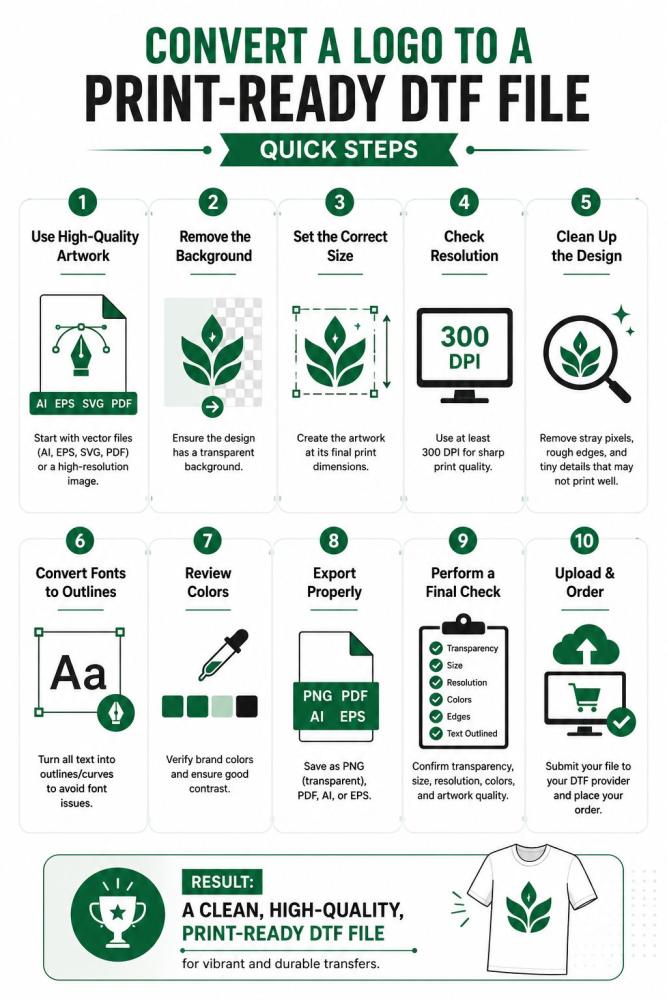
Step-by-Step: Convert a Logo to a Print-Ready DTF File
Creating a high-quality DTF transfer starts long before the printer runs. Proper DTF artwork preparation ensures sharp details, accurate colors, smooth printing, and professional transfer results. Whether you're printing a company logo, brand graphic, or custom design, following the correct DTF design setup process helps avoid common printing issues.
Step 1: Start With the Highest-Quality Artwork
The first step to convert a logo to a DTF file is obtaining the highest-quality version of the design.
Vector files such as AI, EPS, SVG, and PDF are ideal because they can be scaled without losing quality. If you only have a raster image, make sure it is high resolution and large enough for the intended print size.
Avoid:
-
Screenshots
-
Social media downloads
-
Small JPEG files
-
Compressed web graphics
Step 2: Remove the Background
DTF printing requires transparent artwork. Any unwanted background will print along with the design.
Carefully remove:
-
White backgrounds
-
Drop shadows
-
Unwanted borders
-
Background colors
If you need help with this process, read our guide on removing backgrounds for DTF artwork. A clean transparent background is one of the most important steps when you prepare a logo for DTF printing.
Step 3: Set the Correct Print Size
Before exporting your artwork, determine the final print dimensions.
For example:
-
Left chest logo: 3–4 inches wide
-
Full front print: 10–12 inches wide
-
Sleeve logo: 2–4 inches wide
Designing at the correct size prevents scaling issues and preserves image quality when you convert a logo for DTF transfer.
Step 4: Check Resolution
Resolution directly affects print clarity. Understand the DPI vs PPI for DTF printing to pick the right resolution format for your logo image.
For the best print-ready DTF file, use:
-
300 DPI minimum
-
Full-size artwork
-
Sharp edges and clean details
Step 5: Clean Up the Artwork
Before exporting, inspect the design closely.
Look for:
-
Stray pixels
-
Rough edges
-
Unnecessary anchor points
-
Small details that may not print clearly
If your logo contains very thin lines or tiny text, consider simplifying them to improve transfer quality.
Step 6: Convert Fonts to Outlines
If your logo contains text, convert all fonts into outlines or curves.
This ensures:
-
No missing fonts
-
Consistent appearance
-
Better compatibility with DTF software
Many printing errors occur because fonts are not properly embedded before export.
Step 7: Verify Color Accuracy
Review your colors before creating the final file.
While DTF printers handle vibrant colors exceptionally well, it's important to:
-
Check brand colors
-
Avoid overly dark gradients
-
Ensure adequate contrast
-
Preview colors at actual print size
Proper color management improves the final transfer appearance and reduces production revisions.
Step 8: Export in the Correct File Format
Once the design is finalized, export it using a DTF-friendly format.
Most transfer providers prefer:
-
PNG (transparent background)
-
PDF
-
AI
-
EPS
PNG remains the most common option because it preserves transparency and works with most DTF workflows. Learn more about file formats and which is the best file for DTF printing.
Step 9: Final Quality Check
Before uploading your artwork:
-
Verify transparency
-
Confirm dimensions
-
Check resolution
-
Review colors
-
Inspect edges
-
Ensure text is outlined
This final review helps guarantee a true print-ready DTF file.
Step 10: Upload and Order Your Transfer
Once everything is verified, upload the file to a trusted production partner to order your custom DTF transfers and place your order. If you're creating artwork from scratch, our complete guide on how to design your own DTF transfer can help.
Following this process ensures you can successfully convert a logo to a DTF file, create professional DTF artwork preparation, and generate a high-quality print-ready DTF file that produces vibrant, durable, and accurate transfers every time.
Avoiding Common Pitfalls When Converting a Logo to a DTF Print-Ready File
Learning how to convert a logo to a DTF file is only half the battle. Many printing issues happen because small artwork mistakes go unnoticed during preparation. A properly prepared print-ready DTF file can save time, reduce reprints, and ensure professional-quality transfers.
Using Low-Resolution Artwork
One of the most common mistakes is starting with a low-quality logo.
Many businesses try to use:
-
Website images
-
Social media graphics
-
Screenshots
-
Small JPEG files
These files often become blurry when enlarged for printing. Always use vector artwork or high-resolution files at 300 DPI to maintain sharp details.
Forgetting to Remove the Background
A logo may look clean on a white screen but still contain a hidden background layer.
When you convert logo for DTF transfer, any unwanted background can print along with the design. Always verify that the artwork has a transparent background before exporting.
Designing at the Wrong Size
Scaling artwork after it is created often causes quality loss.
Before creating a print-ready DTF file, determine the actual print dimensions. Designing at the correct size ensures text remains readable and graphics stay sharp.
Ignoring Small Details
Tiny text, thin outlines, and intricate design elements may not reproduce well during printing.
Ask yourself:
-
Can the smallest text still be read?
-
Are thin lines thick enough to print?
-
Will details remain visible from a normal viewing distance?
Simplifying complex artwork often produces better transfer results.
Using Incorrect File Formats
Not every file format is ideal for DTF printing.
For most workflows, PNG with transparency is the preferred choice. Vector formats such as AI, EPS, and PDF are also excellent. Avoid heavily compressed files that may reduce image quality.
Not Checking Colors Before Printing
Colors can appear different on a screen compared to a finished transfer.
Before you convert a logo to a DTF file, review:
-
Brand colors
-
Gradients
-
Contrast levels
-
Small colored details
A quick color check helps prevent unexpected results.
Skipping the Final Quality Review
Many artwork issues can be caught with a simple final inspection.
Before uploading your file:
-
Verify transparency
-
Confirm dimensions
-
Check resolution
-
Inspect edges
-
Review text readability
-
Ensure fonts are outlined
Taking a few extra minutes to review your artwork can make the difference between an average transfer and a truly professional print-ready DTF file.
DTF Artwork Troubleshooting Checklist Before Uploading
Even after you convert a logo to a DTF file, small artwork issues can affect print quality. Proper DTF artwork preparation and DTF design setup help prevent blurry transfers, missing details, and color inconsistencies. Before uploading your file, use this troubleshooting guide to catch common mistakes.
Why Your Logo Looks Blurry After Printing
A blurry DTF transfer is usually caused by poor source artwork.
Common causes include:
-
Low-resolution images below 300 DPI
-
Enlarging small logos beyond their original size
-
Hidden JPEG compression artifacts
-
Screenshots used as artwork
When you prepare a logo for DTF printing, always start with vector files or high-resolution images sized correctly for the final print.
Why Small Text Disappears on DTF Transfers
Tiny details often look good on screen but fail during printing.
Watch out for:
-
Fonts smaller than recommended print sizes
-
Thin lettering and hairline strokes
-
Intricate logo details that become unreadable
A good practice is to increase stroke thickness or expand text outlines before you convert logo to DTF file format. This helps maintain readability after transfer.
Why Colors Print Differently Than Your Screen
One of the most common DTF file problems involves color expectations.
This happens because:
-
Screens display colors using RGB light
-
Printed transfers reproduce colors differently
-
Monitor calibration varies from device to device
Always review colors carefully and understand that some minor variation between screen and print is normal.
Pre-Upload Quality Control Checklist
Before submitting your artwork, complete this DTF quality checklist:
✔ Resolution is 300 DPI or higher
✔ Background is fully transparent
✔ Artwork dimensions match the final print size
✔ Colors have been reviewed
✔ Edges are clean with no stray pixels
✔ Small text remains readable
✔ File format is suitable for DTF printing
Following this simple checklist helps ensure a professional, print-ready file and reduces costly production errors.
Vector vs Raster Files for DTF Printing: Which One Produces Better Results?
When preparing artwork for DTF printing, one common question is: vector vs raster for DTF — which file type produces better results? The answer depends on the artwork itself. Both formats can create excellent transfers when used correctly.
What Is a Vector File?
Vector files are created using mathematical paths rather than pixels. This means they can be resized infinitely without losing quality.
Common vector formats include:
-
AI
-
EPS
-
SVG
-
PDF
Vector artwork is often considered the best file type for DTF logo printing because it maintains sharp edges at any size.
What Is a Raster File?
Raster files are made of pixels. Their quality depends on resolution and dimensions.
Common raster formats include:
-
PNG
-
JPG
-
PSD
If a raster image is enlarged too much, it may become blurry or pixelated.
When Vector Files Are Better for DTF
DTF vector artwork is ideal for:
-
Company logos
-
Typography
-
Line art
-
Simple graphics
-
Branding elements
Because vectors stay crisp at any size, they provide maximum flexibility during production.
When PNG Files Work Perfectly Fine
Not every design needs to be vectorized.
High-resolution PNG files work extremely well for:
-
Photographs
-
Complex artwork
-
Digital paintings
-
Detailed illustrations
-
Multi-layer graphic designs
As long as the artwork is 300 DPI at final print size, PNG files can produce excellent DTF transfers, making them a staple for automated on-demand merch fulfillment networks.
How to Convert a Logo From Raster to Vector
If your logo only exists as a JPG or PNG, you can convert logo to vector for DTF using software such as Adobe Illustrator, CorelDRAW, or other popular DTF artwork design tools. After vectorizing the artwork, clean up any rough edges and verify all details before exporting.
In most cases, vectors are preferred for logos and text, while high-resolution PNG files remain perfectly acceptable for photo-based and highly detailed artwork.
DTF Print-Ready File Requirements by Product Type
Many guides discuss general artwork setup, but few explain that print-ready DTF file requirements change depending on what you're printing. Following the correct DTF artwork dimensions for each product helps improve print quality and reduce costly mistakes.
T-Shirt Logo Requirements
T-shirts offer multiple print locations, each requiring different sizing.
Common placements include:
-
Left chest: 3–4 inches wide
-
Full front: 10–12 inches wide
-
Sleeve prints: 2–4 inches wide
Following a proper DTF logo size guide ensures artwork remains balanced and readable.
Hoodie Artwork Requirements
Hoodies provide larger decoration areas, making them ideal for oversized graphics. However, avoid placing designs too close to pockets, zippers, or seams, as these areas can interfere with transfer application and adhesion.
Hat and Cap Logo Requirements
Caps have limited printable space. Simple logos, bold graphics, and thicker lines perform best. Small details and thin text often lose clarity on curved surfaces, so maintaining minimum line thickness is important.
Tote Bag Artwork Requirements
Tote bags require careful sizing because print areas vary by manufacturer. Canvas texture can also affect fine details. Larger, cleaner artwork usually produces better results than highly intricate designs on textured materials.
Gang Sheet Optimization Tips
A smart DTF gang sheet setup helps maximize material usage and improve profitability.
Best practices include:
-
Grouping small logos together
-
Reducing unused sheet space
-
Combining multiple orders on one sheet
-
Maintaining proper spacing between designs
Optimized gang sheet printing reduces waste, lowers production costs, and improves ROI when organizing high-volume apparel runs and bulk orders.
Final Thought
Converting a logo into a print-ready DTF file involves much more than simply uploading artwork and clicking print. Proper DTF artwork preparation, correct file formats, high-resolution graphics, transparent backgrounds, and product-specific sizing all play a major role in the final print quality.
Whether you're preparing a simple logo, a detailed illustration, or a complete gang sheet, taking the time to optimize your artwork helps prevent blurry prints, missing details, color inconsistencies, and production delays.
Understanding the differences between vector and raster files, following proper DTF design setup practices, and using a final quality checklist can significantly improve results.
By following these best practices, you can confidently convert a logo to a DTF file that meets professional printing standards and produces vibrant, durable transfers every time.