
September 29, 2026 · Connor McDonnell
How to Prepare Artwork for a Wholesale DTF Gang Sheet
Ordering a wholesale DTF gang sheet is a practical way to print several designs in one order. It can save time, reduce waste, and make it easier to prepare shirts for a team, event, clothing line, or customer order. However, the final result depends on the artwork you send. A file that looks fine on a phone may print soft, blurry, or with an unwanted background when it is enlarged for a transfer.
The good news is that preparing artwork for DTF printing does not have to be complicated. You do not need a long list of technical terms. You need a clear image, the right file type, enough detail, and a plan for how the designs will fit on the sheet. This guide explains the most important DTF artwork requirements in plain English so you can send files that are ready for wholesale printing by DTFS.co.
What Is a Wholesale DTF Gang Sheet?
A DTF gang sheet is one larger sheet that holds multiple designs. Instead of ordering each logo or graphic on its own sheet, you place several designs together and print them at the same time. The designs can be the same size or different sizes, depending on what you need for your apparel order.
For example, a small clothing brand might place a large front design, a left-chest logo, and several sleeve graphics on one sheet. A school or sports group might place the same team logo in several sizes. A print shop might arrange several customer designs together to keep production organized. After the sheet is printed, each design can be separated and pressed onto the garment it was made for.
A gang sheet works best when the artwork is prepared before it is uploaded. You should know the finished width and height of each design, remove backgrounds that should not print, and leave enough room between designs for easy cutting. A clean file makes the whole process more predictable.
Start With the Right DTF Artwork Requirements
The basic DTF artwork requirements are simple: send a sharp image, use a transparent background when needed, choose a suitable file format, and size each design for its final use. These details matter because a transfer prints what is in the file. If the file includes a white box, that box may appear on the garment. If the image is too small, making it larger will not create new detail.
Before uploading, ask yourself four questions:
-
Is the design clear at the size I want to press?
-
Does the file have a transparent background where I need one?
-
Is the artwork saved in a file type that supports clean printing?
-
Have I left enough space between designs on the gang sheet?
If you can answer yes to all four, your artwork is usually in good shape for a standard DTF transfer order. If you are unsure, it is better to fix the file before submitting it than to discover the problem after printing.
DTF Artwork Requirements: Resolution and PNG Files
When people search for DTF artwork requirements resolution PNG, they are usually trying to answer one question: how large and clear should the image be? For most DTF artwork, a PNG file at 300 pixels per inch is a strong target when the design is saved at its final print size. In plain English, the file should contain enough small image points to keep edges, letters, and details sharp when printed.
The most important part is the design’s actual size. A small image copied from a website may look clear on a screen but become fuzzy when enlarged for a shirt. For example, a logo that is only 500 pixels wide may not stay sharp when you stretch it to 12 inches. Try to create or export the design at the size you plan to print instead of relying on a tiny file.
A PNG is often a good choice because it can keep a transparent background. Transparency means the file does not have a solid white or colored box behind the design. This is useful when you want the fabric color to show around the artwork. Make sure the transparency is real. Some files look like they have a checkerboard background, but the checkerboard may be part of the image rather than a transparency setting.
Do not improve a low-quality image simply by changing the resolution number in a design program. That may change the file information, but it does not add real detail. If the original is blurry, look for a larger original file, recreate the design, or ask the designer for a print-ready version.
What Resolution Should DTF Artwork Have?
Use 300 pixels per inch as a practical goal for artwork saved at its final size. A design that will print 10 inches wide should be created at about 3,000 pixels wide. A design that will print 4 inches wide should be about 1,200 pixels wide. These examples are a guide, not a reason to stretch every file beyond its limits.
Small text, thin lines, and detailed illustrations need extra care. If a line is extremely thin, it may not transfer as clearly as a thicker line. If text is too small, it can lose readability. View the design at the size you will actually press it. A file can look excellent when zoomed in and still be too small for a shirt pocket.
Choose the Best File Format for DTF Printing
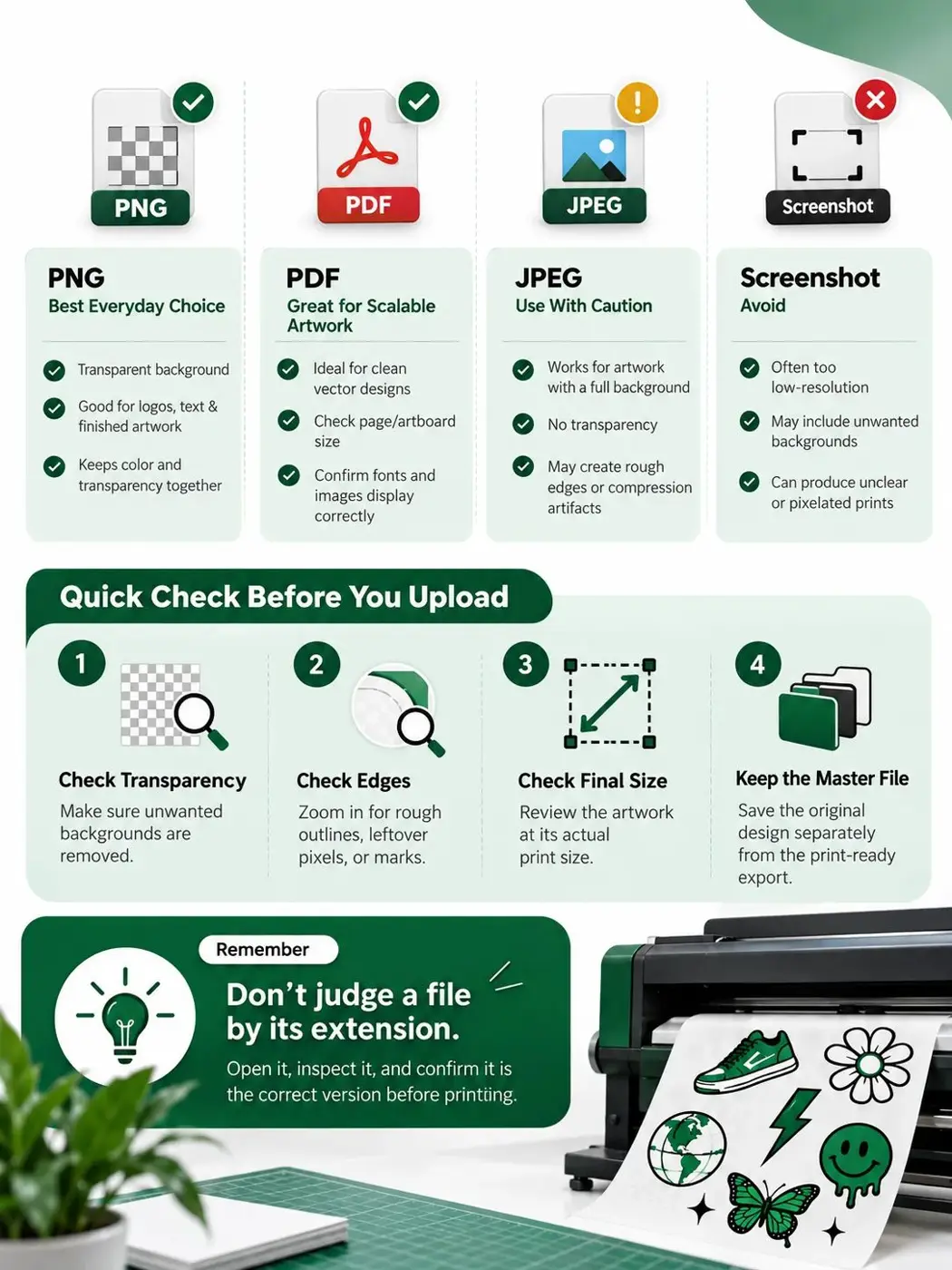
The best file format for DTF printing depends on how the artwork was created, but PNG is a dependable option for finished designs with a transparent background. A high-quality PNG keeps color and transparency together in one file, which makes it easy to upload and review.
A PDF can also be useful when the artwork was created as a clean, scalable design and the file includes the correct page or artboard size. However, not every PDF is prepared the same way. A PDF may contain hidden backgrounds, missing fonts, or images that are too small. If you send a PDF, check that it opens correctly and that the design looks exactly as intended.
JPEG files can work for some artwork, but they are not ideal when you need a transparent background. JPEG files usually add a solid background and may create rough edges around text or logos. Avoid sending a screenshot, social media download, or image copied from a website when you have access to the original design file.
Avoid relying on a file extension alone. A file named “logo.png” may still contain a white background or a low-quality image. Open the file, check its edges, and confirm that it is the correct version before placing it on your sheet.
File Format Quick Guide
-
PNG: A strong everyday choice for finished artwork with a transparent background.
-
PDF: Useful for clean, professionally prepared artwork, but check the page size, fonts, and included images.
-
JPEG: Acceptable for artwork with a full background, but usually not the best option for designs that need transparency.
-
Screenshot: Not recommended because it is often too small and may include unwanted background details.
Match the File to the Artwork
For logos and lettering, use a file that keeps edges clean and backgrounds transparent. For artwork that intentionally includes a full background, confirm that the background is part of the design and not an accidental box.
Review the Edges Before Exporting
Zoom in on the outside edge, then check the design again at its finished size. This quick review can reveal leftover pixels, rough outlines, or small marks that are easy to miss when the file is enlarged.
Keep One Master Copy
Save the original design separately from the print-ready export. This keeps your source file safe if you need to change the size, color, or placement for a future order.
Use a DTF Gang Sheet Template Before You Arrange Designs
A DTF gang sheet template gives you a working area for arranging designs before you place an order. It helps you understand the sheet’s width and height, where the printable area begins, and how much room to leave between designs. Using a template also makes it easier to repeat the same layout when you need to order more sheets later.
Download or open the template for the exact sheet size you plan to use. Do not resize the template casually, because changing its size can make the measurements inaccurate. Place each design inside the printable area and keep the artwork away from the edges unless the instructions say edge-to-edge placement is allowed.
Leave a small gap between designs. The gap should be large enough for you to cut or separate the transfers without trimming into another design. A crowded sheet may look efficient, but it can slow down pressing and increase the chance of mistakes. The best layout uses the available space well while keeping each design easy to identify.
If the sheet is being prepared by DTFS.co through an online builder, follow the builder’s instructions for uploading and arranging files. If you are sending a completed sheet, label the files clearly and make sure the final sheet has not been exported with an unexpected white background.
Ready to arrange your designs?Order Transfers
How to Use a DTF Artwork Template
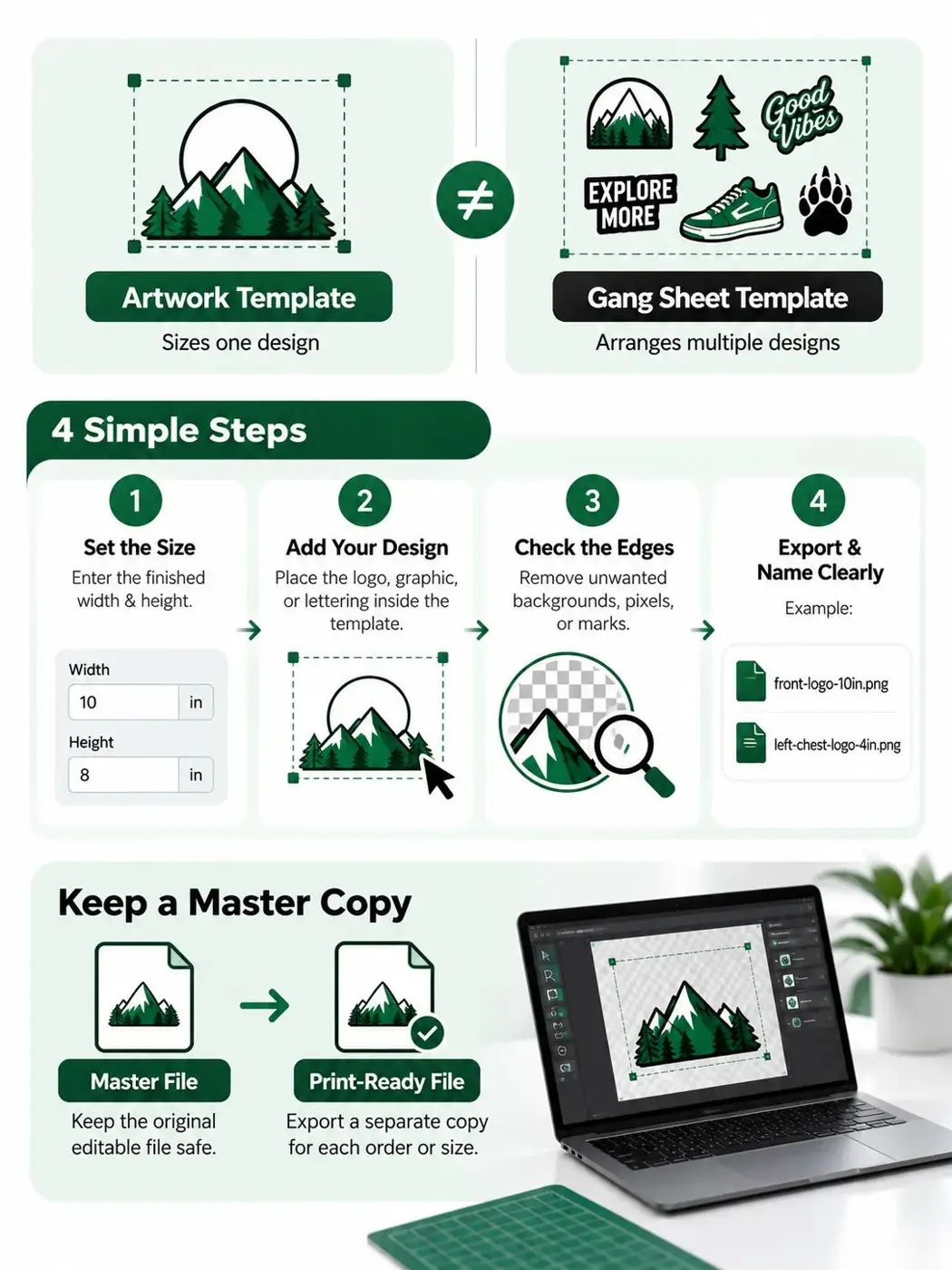
A DTF artwork template is different from a gang sheet layout. An artwork template helps you prepare one design at the correct size, while a gang sheet template helps you arrange multiple designs on one sheet. Both can make the ordering process easier, especially when you are preparing repeat orders.
Use an artwork template to set the finished width and height of a logo, graphic, or piece of lettering. Add the design to the template, check the edges, and remove anything that should not print. Then save a clean copy with a simple name, such as “front-logo-10in.png” or “left-chest-logo-4in.png.” The name tells you what the file is and how wide it should be.
Keep an untouched master file in your design software. Export a separate print file for the order. This gives you a safe original if you need to change the garment color, create a new size, or prepare another version later.
Prepare Artwork for Different Garment Locations
The right size depends on where the design will go. A large front or back print needs a different size from a left-chest logo. Do not assume that one size works for every garment. Think about the finished apparel first, then prepare each design around that use.
For a left-chest print, check the design against the smallest shirt size in the order. A logo that looks balanced on a large adult shirt may feel too wide on a youth shirt. For a full front or back design, consider the garment width, the wearer’s size range, and the amount of open space around the artwork.
If you are ordering multiple sizes of the same design, place each size on the gang sheet as its own file or clearly labeled version. Name them so there is no guesswork during pressing. For example, use “team-logo-youth,” “team-logo-adult,” and “team-logo-2xl” when the versions are different.
Need a specific transfer size instead of a full gang sheet? View DTF transfers by size
Check Color, Edges, and Backgrounds
Color should be checked on a normal screen and, when possible, against the garment color. Very dark shades may look similar on a monitor but press differently on black, navy, or colored fabric. Bright colors usually stand out well, but the final appearance also depends on the design and garment pairing.
Look closely at the outside edge of the artwork. Watch for leftover pixels, a faint box, a white outline that you did not intend, or pieces of an old background. These small problems can be hard to notice when the artwork is viewed at a distance. Zoom in, then return to the final print size before exporting.
If the design uses white, remember that white in the artwork is intended to print as white. A transparent area is different from a white area. This distinction is important when you place the design on a dark garment. Keep the white parts that belong in the design and remove only the background that should not print.
Use Clear File Names and Keep the Order Organized
Good file names prevent mistakes. Include the design name, placement, and finished size when that information matters. Avoid names such as “final-final-new2.png,” because they make it hard to know which version is correct.
A simple naming system might look like this:
-
brand-logo-left-chest-4in.png
-
summer-event-front-11in.png
-
school-mascot-back-12in.png
-
customer-name-sleeve-3in.png
If several people are working on the order, put the final print files in one folder. Remove old versions, screenshots, and reference images before uploading. This reduces the chance of selecting the wrong file or placing an unfinished design on the sheet.
Common Artwork Problems to Fix Before Uploading
Most artwork delays come from a few repeat problems. Fixing them early can keep your order moving and reduce back-and-forth questions.
The first problem is a low-quality image. This often happens when someone downloads a logo from a social media page or takes a screenshot. The file may be too small for the finished transfer. Find the original logo file or recreate the design at the correct size.
The second problem is an unwanted background. A white rectangle behind a logo may not be obvious on a white screen, but it can show clearly on a colored shirt. Check the file over a contrasting background before exporting.
The third problem is incorrect sizing. A design may be technically sharp but still print too large or too small for its intended location. Measure the design in the file and compare it with the garment before placing it on the sheet.
The fourth problem is overcrowding. Designs placed too close together can be difficult to cut and press. Give every design enough breathing room and keep the layout easy to read.
The fifth problem is missing information. If one file is meant for a sleeve and another is meant for the back, label them clearly. Clear notes are especially important for wholesale orders with many designs or garment sizes.
A Final DTF Artwork Checklist
Before you upload or submit the gang sheet, use this final review. It takes only a few minutes and can catch the problems that are most expensive to fix later.
File check:
-
The design is sharp at its final print size.
-
The PNG or other selected file opens correctly.
-
The background is transparent where it should be.
-
Unwanted boxes, shadows, marks, and old versions have been removed.
-
Text and small details are readable at the finished size.
Gang sheet check:
-
Every design is inside the printable area.
-
There is enough space between designs for separation and cutting.
-
Each design has the correct width and height.
-
The layout uses the sheet efficiently without becoming crowded.
-
File names or notes make placement and size easy to understand.
When to Ask for Help With Your Artwork
If you are unsure about a file, ask before placing a large wholesale order. It is helpful to ask about a blurry logo, a missing transparent background, a design with very small text, or a layout that feels too crowded. A quick review can help you choose a better file or adjust the design before printing.
DTFS.co supports customers who need help preparing custom DTF transfers. Send the clearest version of your artwork and explain how you plan to use it. Include the garment type, intended print location, and finished size when you know them. The more context you provide, the easier it is to review the file accurately.
Order Wholesale DTF Transfers With Confidence
Preparing artwork correctly is the best way to start a smooth DTF order. Use a sharp file at the size you need, choose a format that keeps the background clean, arrange designs with enough space, and label every version clearly. These steps help your gang sheet stay organized from upload to pressing.
When your files are ready, DTFS.co can help turn them into ready-to-press custom DTF transfers for apparel projects of many sizes. Whether you are preparing a small clothing collection, a team order, event merchandise, or wholesale production, a clean artwork setup gives you a better chance of getting consistent results across the order.
Have artwork ready for a custom order? Request a quote from DTFS.co
Frequently Asked Questions
What is the best file format for DTF printing?
A high-quality PNG with a transparent background is a reliable choice for most finished DTF designs. A properly prepared PDF may also work for clean artwork. The most important factors are image clarity, correct size, and a background that matches what you want printed.
Can I use a PNG found online?
You can use it only if the file is large and clear enough for the finished transfer and you have permission to use the artwork. Many online images are too small, and they may include a background that should not print. An original logo or print-ready export is safer.
Do I need a DTF gang sheet template?
A template is not always required, but it is helpful. It shows the working area and gives you a consistent way to arrange multiple designs. It is especially useful for repeat wholesale orders.
Can I place different designs on one gang sheet?
Yes. A gang sheet is designed to hold multiple designs. Keep enough space between each one, use clear file names, and check the finished size of every design before submitting the order.
What if my artwork is not ready?
Start with the largest, cleanest version you have. Remove unwanted backgrounds, set the design to its finished size, and save a print-ready copy. If you are still unsure, contact DTFS.co before ordering so the file can be reviewed.